Klaro App — Customer Service Playbook
Every card: what the customer says, what it looks like, the ranked causes, how to confirm, the exact reply to send, and when to stop scripting and escalate. Built from six months of real tickets.
Bridge LED States & The Two Button Presses
Hold the button on the back until the light blinks red, then starts blinking green. Wipes the bridge's Wi-Fi settings and re-points it at Klaro's production servers (manufacturer spec: 12 seconds).
Short hold until the light blinks green. The bridge is now waiting for Wi-Fi setup in the app: connect it to a 2.4GHz network → light goes solid green → then scan for the hygrometer.
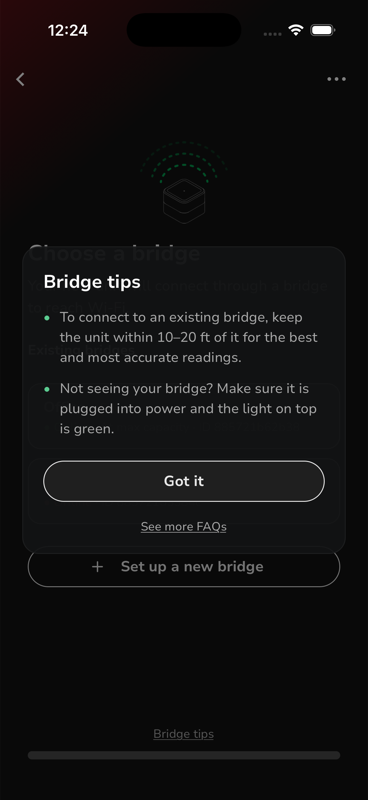
The Silent Bridge — registered, but never actually connected
"The app says No Hygrometer Available no matter what I do."
"We've set it up multiple times with everything right next to each other and it still won't connect."
"It's been weeks and the humidor has never shown up in the app."
The bridge registered during setup (the phone wrote the record over Bluetooth) but has never established a working connection to Klaro's servers — usually because Wi-Fi provisioning never truly completed. Every hygrometer scan comes back empty because the server can't reach the bridge at all. "Move the devices closer" will never fix this — distance was never the problem.
- Wi-Fi provisioning never completed — customer's network is 5GHz-only, or the Wi-Fi password was mistyped.
- Bridge unplugged or power-cycled mid-setup and never re-provisioned.
- Network blocks the bridge — hotel/guest networks, some mesh systems, Starlink setups with unusual defaults.
- Ask for a photo of the bridge light. Anything but solid green while "connected" claims are being made confirms this card.
- Ask what network they connected it to — do they know if it's 2.4GHz? Is it a mesh system with one combined network name?
- Get the exact email they log in with (and any other email they might have used).
One backend lookup settles it: a bridge in this state shows last_reading_received_at empty, zero recorded bridge responses since registration, and no storage unit ever created. Ignore the app's Online/Offline label for a bridge with no unit — it's a known-stale flag. Ping Ian or Fazal with the customer's login email.
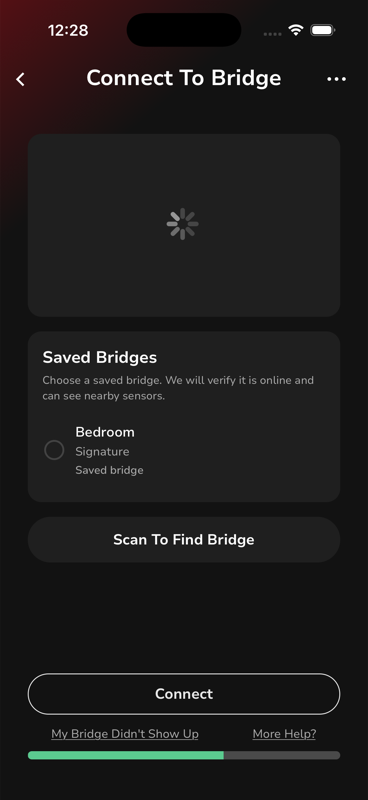
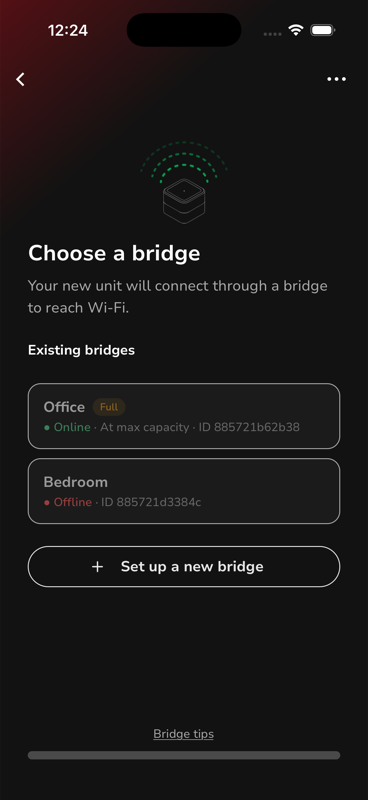
Known bugs feeding this card: stale Online/Offline label (pipeline #73 — live-confirmed 2026-07-31: a bridge labeled Offline answered scans) · scan-gate regression (#72/#50) · the bridge search spinner never times out, and tapping an Offline bridge is silently ignored — the customer gets no feedback at all.
Setup Stuck Mid-Flow — between Wi-Fi pairing and hygrometer pairing
"Wi-Fi pairing worked but now it's stuck before it finds the hygrometer."
"The bridge goes from blinking green to blinking red."
"I'm just stuck on this page." (screenshot of a setup screen)
- Wi-Fi didn't actually take — blinking red after provisioning = wrong password or 5GHz. The app's flow can be ahead of where the bridge really is.
- Old app version — a wave of these came from customers on stale builds; "update the app and try again" genuinely fixed them.
- Bridge needs a clean slate — a reset clears half-finished provisioning state.
- iOS Bluetooth permission / Bluetooth off — the app historically didn't prompt when BT was off during first-time setup.
- Screenshot of the exact screen they're stuck on — "stuck" means five different screens; the screenshot picks the path.
- Photo of the bridge light right now.
- App version (app settings) and phone OS.
- iPhone: Settings → Klaro → is Bluetooth allowed?
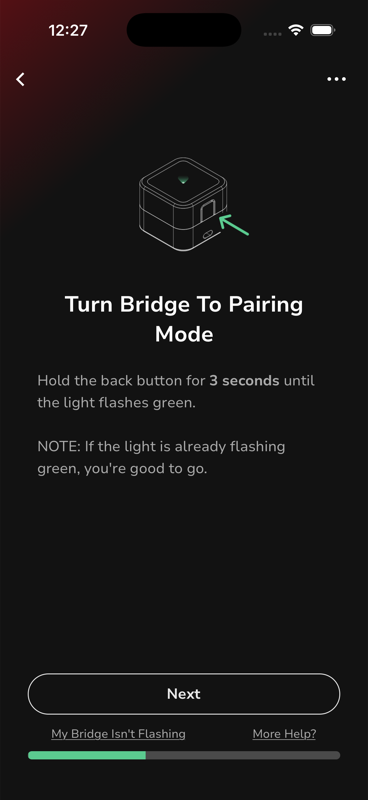
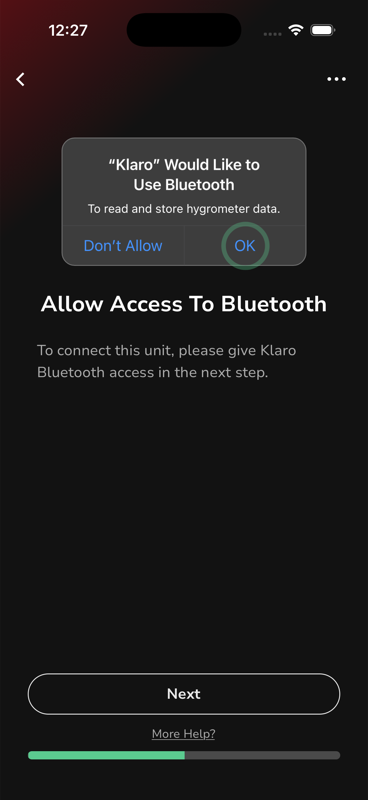
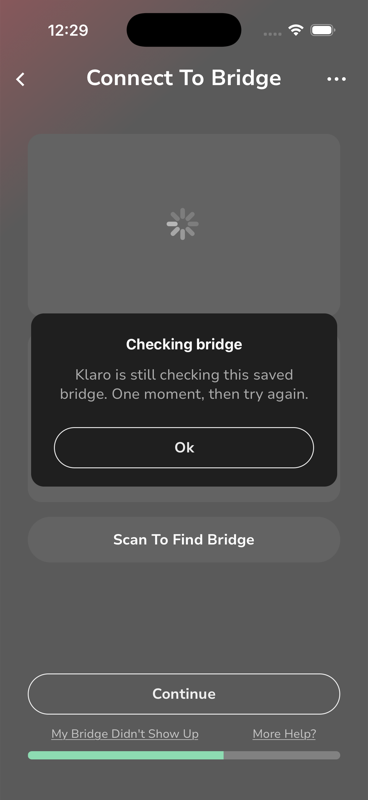
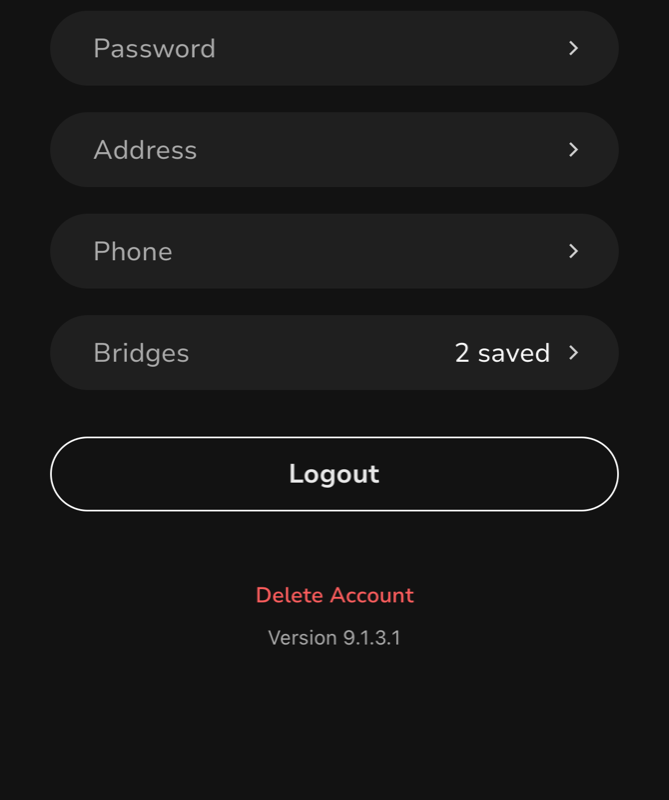
Known bugs feeding this card: missing iOS BT-permission prompt (fixed on test/live-master — prompt confirmed appearing in 9.1.3.1, screenshot above) · force-update popup reliability unverified. Note the in-app copy says hold 3 seconds for pairing mode — when a customer quotes "3 seconds," they read it in the app; it's the same press as the 3–4s reprovision.
"Params Missing" — always a backend fix, never a customer fix
"At the last step I get an error that says some parameters are missing."
"I'm adding two new hygrometers to my existing bridge and it says Params Missing. I even reinstalled the app — nothing."
This error is server-side account state — something about the customer's account/device records is inconsistent, and the app's request is rejected. Nothing the customer does on their phone fixes it: reinstalling, resetting, and retrying have all been tried and all failed. Every resolved case was fixed by engineering touching the account directly, after which "try again" just worked. It has hit customers adding hygrometers to an existing bridge and customers on unusual networks.
- Screenshot of the error (confirm it actually says Params Missing — don't trust paraphrase).
- What they were doing: fresh setup, or adding devices to an existing bridge?
- Login email — engineering needs it; this card cannot be resolved without them.
No Hygrometer Found — bridge is online, scan comes back empty
"The bridge light is green but it can't find my hygrometer."
"The app never triggers the hygrometer to blink during setup."
"It says move the unit closer, but they're right next to each other."
The phone never scans for the hygrometer. The app asks Klaro's servers, the servers ask the bridge, and the bridge does the Bluetooth scan from wherever it sits. So what matters is hygrometer ↔ bridge distance and the hygrometer actually broadcasting — the phone's Bluetooth and the phone's location are irrelevant. Prerequisite: this card assumes the bridge light is solid green. If it isn't, you're on Card 01.
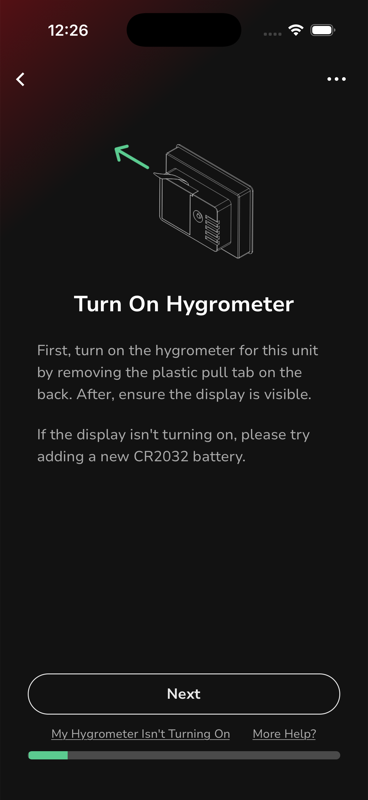
- Hygrometer not broadcasting — battery pull-tab still in, dead/weak CR2032 coin cell, display dark.
- Hygrometer too far from the bridge — different room, metal cabinet, >10ft. (The bridge does the scanning, remember.)
- Hygrometer already claimed — attached to another account or a previous setup; it shows greyed-out or not at all. Common with replacements and re-gifted units.
- Bridge briefly unreachable — scan timed out; a second scan attempt works.
- Is the hygrometer's display showing numbers? (Dark display = battery problem, full stop.)
- Battery tab removed? Battery replaced with a fresh CR2032 if it's been sitting a while?
- How far is the hygrometer from the bridge during the scan?
- Is this a replacement or previously-owned unit? (→ claimed-elsewhere, needs engineering to release it.)
- How many hygrometers are already on the bridge? Max is 3.
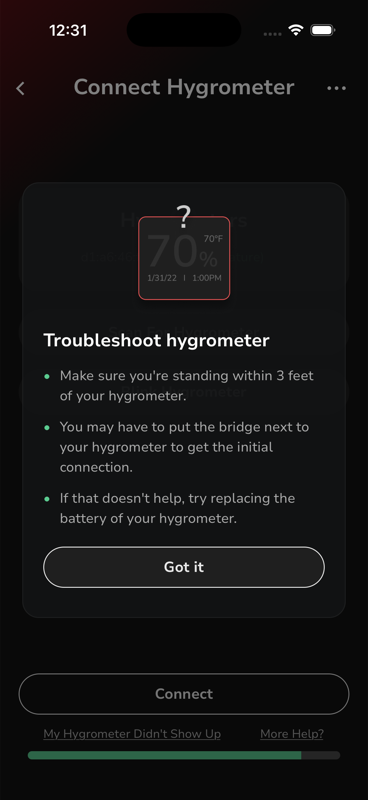
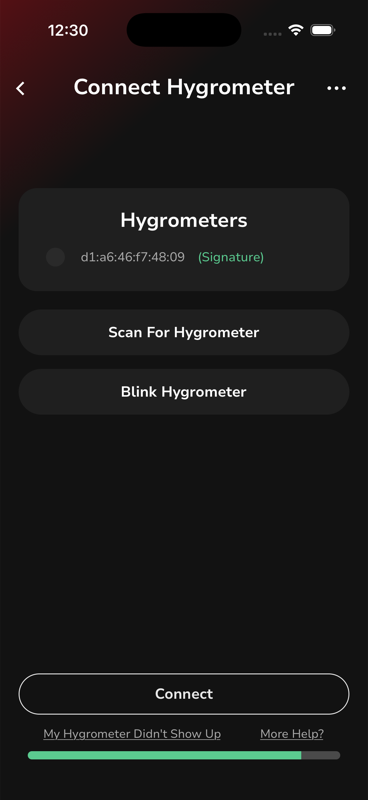
Known bugs feeding this card: scan-gate regression blocks re-scan on slow-to-advertise sensors (#72, pending hardware verification #50).
Claimed Hygrometer — "already in use" or greyed out in the scan
"It found the hygrometer but I can't select it — it's greyed out."
"This is a replacement unit and it won't add to my account."
"I bought the humidor secondhand and the sensor won't connect."
A hygrometer can belong to one account at a time. If it was ever set up before — by a previous owner, on a replacement that was never released, on a spouse's account, or even during factory QA — it's still attached to that setup. In the scan results it appears greyed out with the name of the unit that owns it (see screenshot). The customer cannot fix this from their phone: it has to be released on the backend, which takes engineering a couple of minutes.
- Screenshot of the scan results — a greyed-out entry labeled with a unit name is this card, full stop.
- Where did the hygrometer come from? Replacement, secondhand, gift, previously returned unit?
- Could it be claimed by one of their own accounts — an old email, or a family member's login?
- Login email, exactly as they sign in.
Known bugs feeding this card: the reprovisioning flow can let one account claim another's device ("Cross User Takeover", flagged May 2026) — the same mechanism behind most surprise claims.
Second Bridge or Hygrometer — adding to a setup that already works
"I'm trying to add a second humidor and it won't connect."
"Do I need another bridge for my new humidor?"
"The bridge starts blinking and now nothing works."
One bridge serves multiple humidors — up to 3 hygrometers per bridge. A customer adding their second or third unit almost never needs new hardware; they need the right flow: Add Unit under their existing bridge, not Add Bridge.
The #1 mistake: touching the bridge button. Adding a unit to a working bridge does not involve the bridge's button at all. Customers press it "to help," which drops the bridge into provisioning mode — the light starts blinking, the working setup goes dark, and now they have two problems. The bridge should stay solid green the entire time.
- How many hygrometers are already on the bridge? 3 is the max — a 4th needs a second bridge.
- Did they press the bridge button during the add? Is the light blinking now, or solid green?
- Are they choosing Add Unit (new humidor on existing bridge) or Add Bridge (new bridge hardware)? Screenshot of where they are in the flow.
- New hygrometer: battery tab out, display showing numbers?
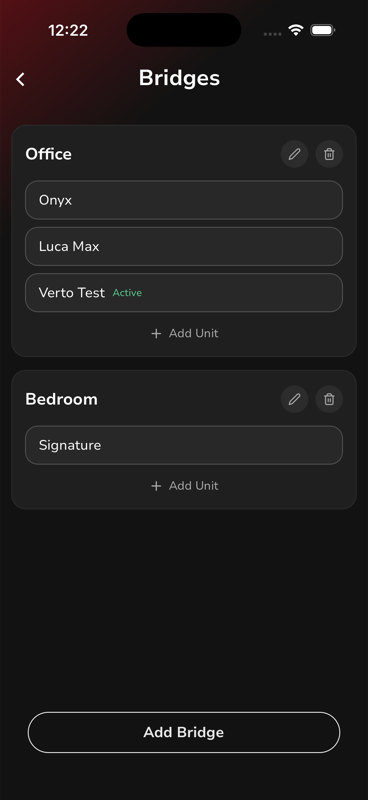
Evidence: Fazal has stated the max-3 rule verbatim twice, and diagnosed the press-the-button-while-adding trap in both bridge (Mar 2026) and fridge (Jun 2025) variants.
Readings Wrong or Stale — 0%, frozen, or a few percent off
"Humidity is stuck at 0% but the temperature works fine."
"The app isn't updating — it's been frozen for days. I've tried reinstalling it."
"It reads 3–4% lower than my other hygrometer."
- Stuck at 0% with temperature fine — the sensor element itself, not connectivity. Nothing CS-side fixes this; escalate.
- Readings stopped updating / frozen / gaps — the connection died somewhere: bridge unplugged or offline, Wi-Fi changed, hygrometer battery flat or out of range. By far the biggest lane. Reinstalling the app never fixes it — the phone isn't in the data path.
- Consistent small offset — a calibration question, not a fault. The app has a manual calibration offset for exactly this.
- Which lane? Ask for a screenshot of the unit's readings and when it last updated.
- Bridge light photo — frozen readings with a dark or red-blinking bridge is really Card 01 territory.
- Is the hygrometer display showing numbers? Note: on some models the display is motion-activated — dark until you wave at it or open the lid. Dark display ≠ dead hygrometer; a display that stays dark up close = battery.
- Anything change recently — new router, moved the bridge, unplugged it, replaced the battery?
- Are other customers reporting the same thing this week? A cluster of same-week frozen-readings tickets has been a server-side bug before (Nov 2025, confirmed and fixed). Flag a cluster to engineering immediately — don't script each one individually.
Engineering can see the exact timestamp of the last reading and the hygrometer's battery health percentage remotely — one lookup separates "died three months ago" from "healthy but the app isn't showing it." Send the login email. (Their diagnostic screenshots are internal — don't forward them to customers.)
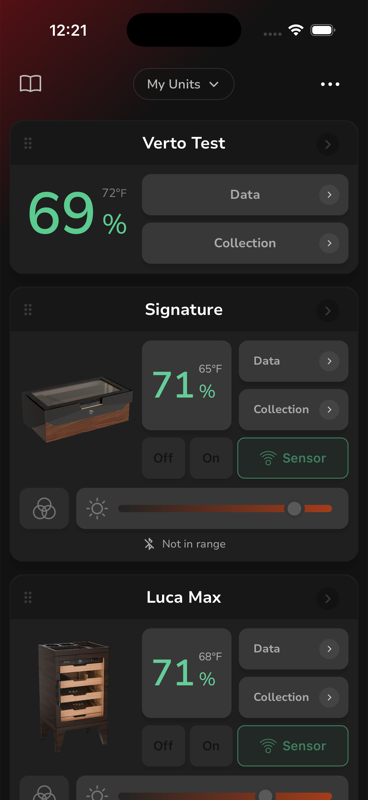
Known bugs feeding this card: stale Online/Offline label (#73) — don't trust the app's label when triaging; Nov 2025 missing-data server bug (fixed) is the precedent for treating clusters as our-side-first. Calibration offset: exact menu location should be verified in the current build — flag to Ian if it moved.
Account Operations — email changes, transfers, resets, portal access
"I need my account moved to my new email address."
"Can you transfer the membership from my wife's account to mine?"
"The Crew Portal says my email is not registered."
"The manager who set up the app left the company."
There is no self-serve path for any of these. Every account mutation — email change, membership transfer, ownership reset, password unlock, data-access grant — is done by hand by engineering. Your job on this card is to collect a clean request, set the expectation of a business day or two, and stop the customer from making it worse in the meantime. The single most damaging thing a frustrated customer does here is delete their account (the red button is right there in the app) — that orphans their device history and turns a 5-minute fix into a real problem. Head it off explicitly.
- Email change: old email exactly as they log in + the new email. Engineering changes it backend-side; done same-day historically.
- Membership / ownership transfer (spouse, family, resale): both emails + confirmation from the current owner. Proven flow — a spousal transfer was completed manually in June 2026.
- Locked out / password: login email. Engineering can issue a temporary password the customer changes after logging in. Never promise a reset link — there isn't one.
- "Email is not registered" (app or Crew Portal): first assume the wrong email — ask for every address they might have used, typos included. Engineering can search for near-misses. The Crew Portal itself had a registration bug, fixed 2026-06-24 — if a registered customer still can't get in, that's a bug report to Ian, not a script.
- Company / orphaned-admin accounts (employee who set it up left): collect the business name, the unit, the old admin email if known, and who should own it now. Set expectations low — there is no established ownership-reset path yet (the restaurant Airo case has been open since mid-July). Escalate to Ian directly.
Product gap feeding this card: 7+ threads of manual engineer work in six months — self-serve email change and ownership transfer are on the engineering list. Until then, this card is the process.
App Crash or Old Version — "it crashes every time" and stuck screens
"The app crashes every single time I log in. Reinstalling didn't help."
"I'm stuck on this screen and nothing happens." (on a months-old version)
A large share of "the app is broken" tickets are customers on a stale version hitting bugs that are already fixed — the June 2026 wave of stuck-setup reports cleared with "update and try again." The in-app force-update prompt can't be relied on to have fired, so never assume they were told to update. The rest are real bugs on the current version — those need engineering, with evidence.
- App version first, always — it's at the bottom of the Account screen (see screenshot). Compare against the current store version before anything else.
- Phone model + OS version.
- If they're current: a screen recording of the crash or stuck screen. Video beats description every time.
- Login email — engineering debugs crashes account-side.
Known bugs feeding this card: login crash loop (May 2026, debugged by email) · tag-delete hang fixed but slow to publish (July 2026) · force-update popup reliability unverified.
Fridge Units — fans, provisioning, and the buttons on the back
"The fans aren't running — I think it's broken."
"My fridge humidor won't connect to the app."
"What do the buttons on the back do?"
Fans do not run when humidity is above 70% RH. That is the design, not a fault — the fans circulate to raise humidity, so at target they rest. This has been re-explained to customers at least three times; lead with it whenever "fans stopped" is the complaint. Only a fridge that's also drifting badly off its set temperature (e.g. reading 84°F against a 69°F setpoint) is a real hardware case.
Fridge units provision like a bridge: a 2–3 second hold on the provisioning button puts the fridge in pairing mode, Wi-Fi setup runs in the app (Airo Line → your model), and the light goes solid green. The classic failure: the first scan after provisioning fails, and the customer puts the fridge back into provisioning mode — which guarantees the scan keeps failing. Once the light is solid green it must stay solid green; a failed scan just means scan again and give it 30 seconds.
A customer-shareable walkthrough, fridgador-provisioning.MP4, is in #support-klaro (Fazal, 2025-06-16) and in the matching Notion ticket. Share only that first video — the second one in the same message (fridge-provisioning-2.mp4) shows an internal prototype and is reference-only, per Fazal.
- Which complaint is it really: fans (→ fact one), connection (→ fact two), or temperature drift (→ hardware lane)?
- Photo of the unit's light + current humidity and set point from the display.
- If mid-setup: did the first scan fail, and did they re-press the provisioning button after that?
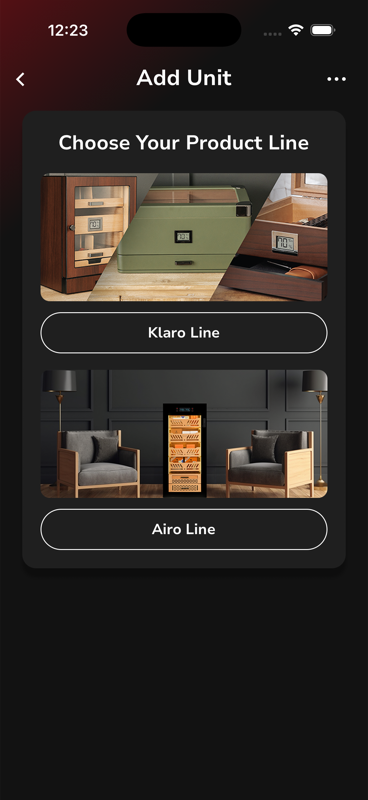
Evidence: fans-by-design confirmed by Ian (May + Jul 2026) · provisioning trap diagnosed by Fazal twice (Jun 2025) · display note: some hygrometer displays are motion-activated — "keeps turning off" is a feature, not a fault.
Hardware & Parts — route to Anderson / Jonathan
Drawers, latches, gaskets, magnets, hinges, bases, washers, trays, glass — anything physical that isn't the hygrometer or the bridge electronics. Don't troubleshoot these as app issues; collect the evidence pack and route.
- Order number + the exact model/SKU.
- Clear photos of the damaged/failing part (and one wider shot of the unit).
- Shipping address confirmed current.
Orders, Shipping & Refunds — route to the warehouse lane
Tracking chases, expedite requests, split shipments, return labels, refunds, wholesale pricing. These live in the warehouse/ops lane, not with app engineering — never ping Fazal on an order.
- Shipping status, expedites, and warehouse actions → the #indiana-productjump lane with the order number.
- Return labels and label funding issues → Maria.
- Refunds → approval from Noely, processed by Jonathan (CS doesn't have refund access — plan the handoff, don't promise instant refunds).